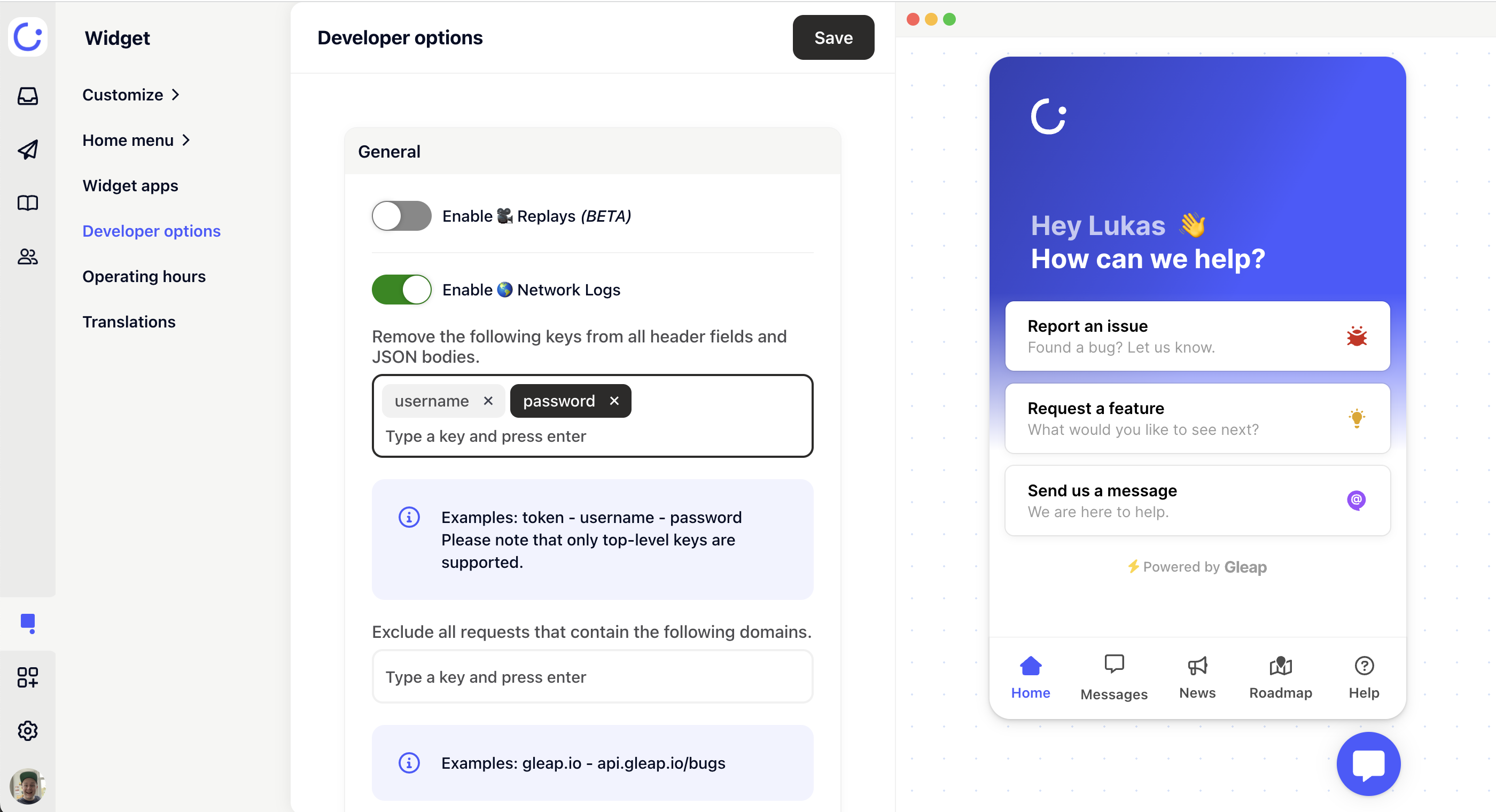
Gleap logs your app’s network requests and attaches the most recent ones to every ticket, so you can see what went wrong.

Enable network logs

Add the Gleap interceptor for your HTTP client. We support the packages http and Dio. Requests logged from Dart (by the interceptors or with Gleap.logNetworkRequest) are attached to every ticket, no dashboard setting needed. The Network logs switch in the Developer options of your project in the Gleap dashboard additionally turns on the native recording of NSURLSession requests on iOS and the JavaScript SDK’s fetch / XMLHttpRequest logger on the web. For each request Gleap logs the full URL, method, request and response headers and bodies, the status, the duration and, for failed requests, the error. Text bodies are kept up to 150 KB; binary and streaming bodies are left out. The interceptors never change a request or response, and all of them share one list of the newest 30 requests.
On the web, the JavaScript SDK’s own logger may record the same requests when network logs are turned on, so they can show up twice.
Version 2.0 of both interceptors needs gleap_sdk 19.0.0. If you use a 1.x interceptor, update it to 2.0 together with gleap_sdk 19.

Gleap Dio Interceptor

Add the Gleap Dio Interceptor package to your pubspec.yaml. Version 2.0 needs gleap_sdk 19.0.0 and dio 5 (5.2.0 or newer).
Attach GleapDioInterceptor() after your other interceptors.

Gleap Http Interceptor

Add the Gleap Http Interceptor package to your pubspec.yaml. Version 2.0 needs gleap_sdk 19.0.0, http_interceptor 3.x and Dart 3.8 / Flutter 3.32 or newer.
Attach GleapHttpInterceptor() as the last interceptor.
A request is logged once your app has read its response body. Multipart request bodies are logged as a summary of their fields and file names.
http_interceptor doesn’t pass errors to interceptors, so requests that fail without a response (no connection, timeout) are not logged with the http interceptor. The Dio interceptor logs them with their error.

Other HTTP clients

Log requests of any other client with Gleap.logNetworkRequest:
For a request that failed without a response, set success: false and response: GleapNetworkResponse(errorText: error.toString()).

Start and stop network logging

Switch network logging off and on from your app, also against the dashboard setting:
After stopNetworkLogging(), Gleap.logNetworkRequest and Gleap.attachNetworkLogs (and with them both interceptors) ignore new requests. Requests logged before stay attached. On iOS the native recording is stopped and started as well.
On the web, startNetworkLogging() also starts the JavaScript SDK’s network logger, which can’t be stopped. stopNetworkLogging() only affects requests logged from Dart there.

Filtering network logs

Gleap allows you to strip off specific key/value pairs from network logs. This empowers you to easily remove sensitive data like tokens, passwords or usernames.

How does it work?

Open your project in the Gleap dashboard, go to Developer options and add the keys to exclude under Network logs → Ignored keys. The keys are loaded together with the widget configuration, and the SDK removes them on the device before a report is sent, so this data never leaves the client application:
  • Headers: request and response headers with a matching name are removed (the name is matched case-insensitively).
  • JSON bodies: matching keys are removed from request and response bodies at any depth, including objects inside arrays. A key with dots, like user.password, also removes exactly that path.
  • Form bodies and URL parameters: matching application/x-www-form-urlencoded fields and query parameters are removed.
Independent of this list, the values of the Authorization, Proxy-Authorization, Cookie and Set-Cookie headers are always replaced by [REDACTED].
Matching nested keys, form fields and URL parameters, and the masked credential headers, need SDK v19.0.0 or newer. Older SDKs only remove top-level keys from headers and JSON bodies, and the Android SDK applied neither the ignored keys nor the blacklist before v19.0.0.

Example

To remove an API key header and every password field, add x-api-key and password to the list.

Set filter with code

It’s also possible to set the network log filters by code. Each call replaces the previous list. The keys set in the dashboard apply in addition.

Blacklisting URLs

It is possible to blacklist URLs or parts of URLs. If a network request matches one of the entries in the blacklist, the network request won’t be included in the network logs.
Requests to Gleap’s own hosts (gleap.io and gleap.ai, the domain of the US data region) are always excluded from the network logs, so you don’t need to blacklist them yourself. The JavaScript SDK does this since v18.0.0, the iOS, Android, React Native, Flutter and Ionic Capacitor SDKs since v19.0.0.
To add a new entry to the blacklist, open your project in the Gleap dashboard, go to Developer options and add the URLs under Network logs → Excluded domains.

Set blacklist with code

It’s also possible to set the network log blacklist by code. Each call replaces the previous list. The domains set in the dashboard apply in addition.