Gleap logs your app’s network requests and attaches the most recent ones to every ticket, so you can see what went wrong. If you are using OkHttp (directly or through Retrofit, Coil, Apollo or Ktor’s OkHttp engine), add the Gleap OkHttp interceptor; requests of other clients can be logged manually.

OkHttp

Add GleapOkHttpInterceptor to your OkHttpClient. It ships with the Gleap Android SDK, no extra dependency is needed.
For each request Gleap logs the method, URL, request and response headers, text bodies (JSON, XML, text and forms, up to 150 KB each), the status, the duration and, for failed requests, the error. The interceptor copies the response body while your app reads it, so requests and responses are never changed or delayed; binary and streaming bodies (images, server-sent events) are left out. The last 30 requests are attached to a ticket. Add it with addInterceptor to log requests as your app sends them. With addNetworkInterceptor it logs every request that goes to the network, including the headers OkHttp adds; redirects and retries are then logged separately.
Since SDK v19.0.0 the interceptor is part of the Gleap Android SDK. If you added the separate io.gleap:gleap-okhttp-interceptor dependency before, remove it: the class name is the same, so your code stays as it is. While it is still declared, the SDK upgrades it to an empty release, so the build keeps working. The separate artifact dropped the headers and body of JSON requests, kept only 2 KB of each response and didn’t log failed requests.

Logging HttpsURLConnection requests

Requests made with HttpsURLConnection can be logged manually after they complete. The requestBody and result can be passed on as JSON or String.

Other libraries

If you are using any other library than OkHttp or HttpsURLConnection, you can log any request manually. Pass the URL, the method, the status, the duration in milliseconds and the request and response details as JSONObjects.
For a request that failed without a response, pass 0 as status and set errorText in the response object. RequestType covers GET, POST, PUT, DELETE, PATCH, HEAD and OPTIONS (HEAD and OPTIONS since SDK v19.0.0).

Filtering network logs

Gleap allows you to strip off specific key/value pairs from network logs. This empowers you to easily remove sensitive data like tokens, passwords or usernames.

How does it work?

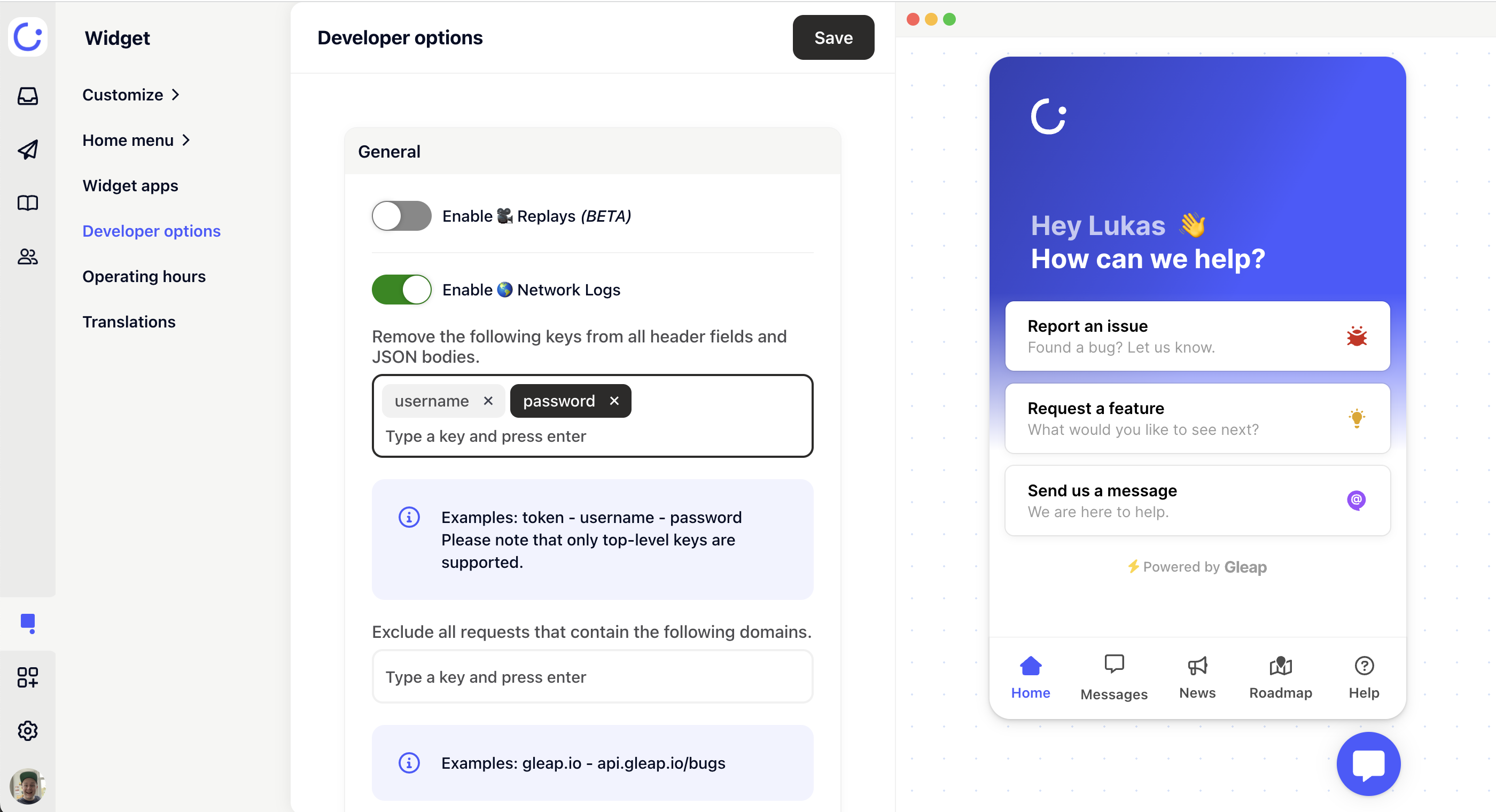
Open your project in the Gleap dashboard, go to Developer options and add the keys to exclude under Network logs → Ignored keys. The keys are loaded together with the widget configuration, and the SDK removes them on the device before a report is sent, so this data never leaves the client application:
  • Headers: request and response headers with a matching name are removed (the name is matched case-insensitively).
  • JSON bodies: matching keys are removed from request and response bodies at any depth, including objects inside arrays. A key with dots, like user.password, also removes exactly that path.
  • Form bodies and URL parameters: matching application/x-www-form-urlencoded fields and query parameters are removed.
Independent of this list, the values of the Authorization, Proxy-Authorization, Cookie and Set-Cookie headers are always replaced by [REDACTED].
Matching nested keys, form fields and URL parameters, and the masked credential headers, need SDK v19.0.0 or newer. Older SDKs only remove top-level keys from headers and JSON bodies, and the Android SDK applied neither the ignored keys nor the blacklist before v19.0.0.

Example

To remove an API key header and every password field, add x-api-key and password to the list.

Set filter with code

It’s also possible to set the network log filters by code. Each call replaces the previous list. The keys set in the dashboard apply in addition.

Blacklisting URLs

It is possible to blacklist URLs or parts of URLs. If a network request matches one of the entries in the blacklist, the network request won’t be included in the network logs.
Requests to Gleap’s own hosts (gleap.io and gleap.ai, the domain of the US data region) are always excluded from the network logs, so you don’t need to blacklist them yourself. The JavaScript SDK does this since v18.0.0, the iOS, Android, React Native, Flutter and Ionic Capacitor SDKs since v19.0.0.
To add a new entry to the blacklist, open your project in the Gleap dashboard, go to Developer options and add the URLs under Network logs → Excluded domains.

Set blacklist with code

It’s also possible to set the network log blacklist by code. Each call replaces the previous list. The domains set in the dashboard apply in addition.