> ## Documentation Index
> Fetch the complete documentation index at: https://docs.gleap.ai/llms.txt
> Use this file to discover all available pages before exploring further.
# Network logs
Gleap allows you to monitor all network requests for a better understanding of what's happening within your apps.
Network logs for ReactNative **work out of the box**. Simply enable them within the visual widget configurator.
## Filtering network logs
Gleap allows you to strip off specific key/value pairs from network logs. This empowers you to easily remove sensitive data like `tokens, passwords` or `usernames`.
### How does it work?
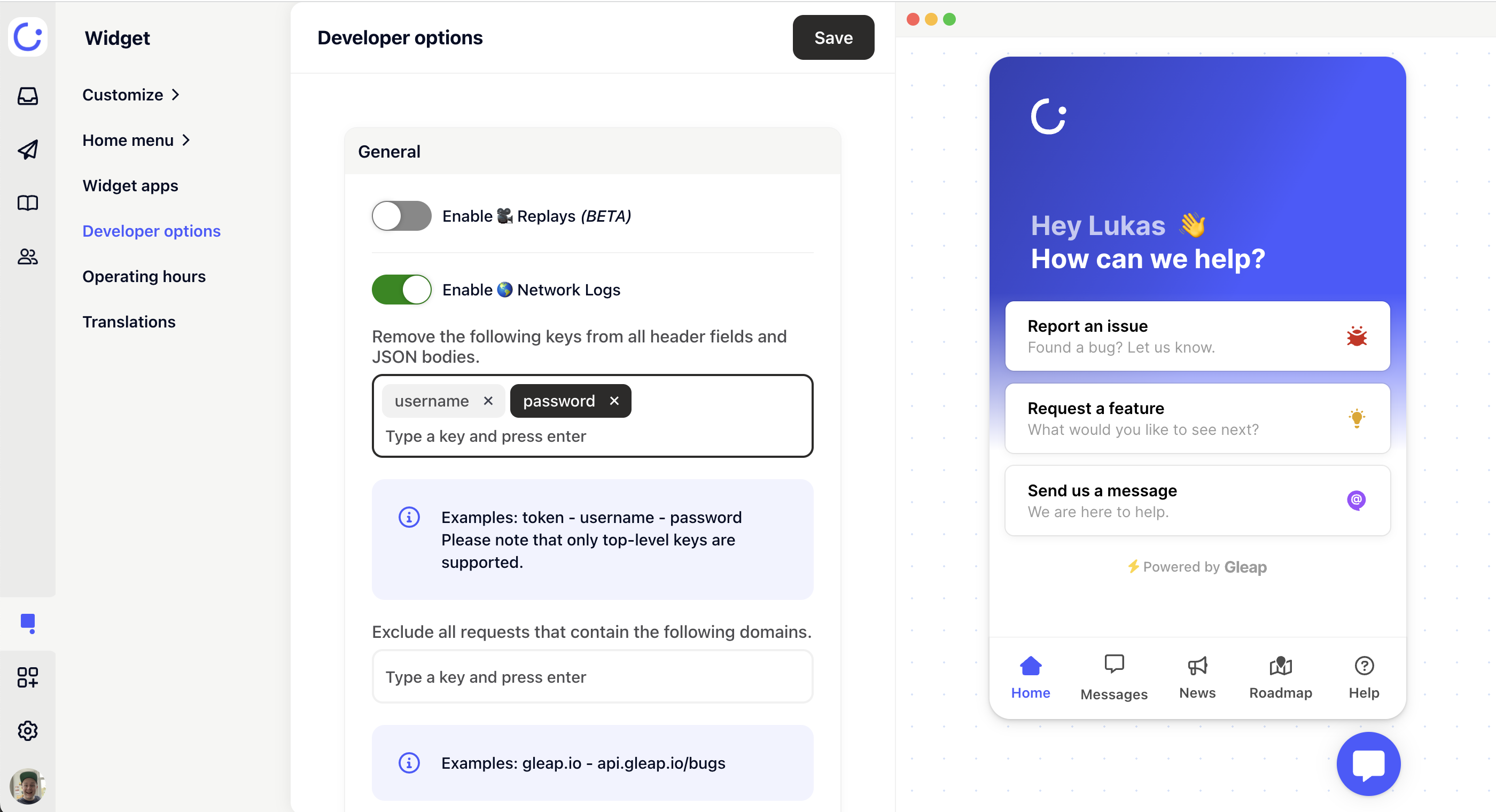
Log in to the [Gleap dashboard](https://app.gleap.ai) and open the visual widget configurator. Now enable the `network log filters` option (within the advanced options tab). Once the option is enabled, you can add multiple keys to the array bellow, which should be excluded.
All keys, which you add to the exclusion list, will be loaded together with the widget configuration. Before sending a feedback item to our backend, the client SDK will loop through all network requests and stripe off all matching key/value pairs from the `request headers`, `header-payload` (if it's a JSON) and `response body` (if it's a JSON).
This ensures that sensitive information will never even leave the client application.
#### Example:
If you want to remove the Authorization bearer token from your requests, simply add "Authorization" to the list of keys.
 ### Set filter with code
It's also possible to set the network log filters by code.
```javascript theme={null}
// Manually set the network logs filters
Gleap.setNetworkLogPropsToIgnore(["api-key", "user.password", "..."]);
```
## Blacklisting URLs
It is possible to blacklist URLs or parts of URLs. If a network request matches one of the entries in the blacklist, the network request won't be included in the network logs.
Requests to Gleap's own hosts are excluded from the network logs by default, so you don't need to blacklist them yourself. SDK **v18.0.0 and newer** exclude both `gleap.io` and `gleap.ai` (the domain of the [US data region](/documentation/guides/data-regions)); older versions only exclude `gleap.io`.
To add a new entry to the blacklist, simply navigate to your project in the [Gleap dashboard](https://app.gleap.ai) and open the visual widget configurator. Now click on `Developer options` and add the desired URLs.
### Set blacklist with code
It's also possible to set the network log blacklist by code.
```javascript theme={null}
// Manually set the network logs blacklist
Gleap.setNetworkLogsBlacklist(["https://api.gleap.io", "..."]);
```
### Set filter with code
It's also possible to set the network log filters by code.
```javascript theme={null}
// Manually set the network logs filters
Gleap.setNetworkLogPropsToIgnore(["api-key", "user.password", "..."]);
```
## Blacklisting URLs
It is possible to blacklist URLs or parts of URLs. If a network request matches one of the entries in the blacklist, the network request won't be included in the network logs.
Requests to Gleap's own hosts are excluded from the network logs by default, so you don't need to blacklist them yourself. SDK **v18.0.0 and newer** exclude both `gleap.io` and `gleap.ai` (the domain of the [US data region](/documentation/guides/data-regions)); older versions only exclude `gleap.io`.
To add a new entry to the blacklist, simply navigate to your project in the [Gleap dashboard](https://app.gleap.ai) and open the visual widget configurator. Now click on `Developer options` and add the desired URLs.
### Set blacklist with code
It's also possible to set the network log blacklist by code.
```javascript theme={null}
// Manually set the network logs blacklist
Gleap.setNetworkLogsBlacklist(["https://api.gleap.io", "..."]);
```