> ## Documentation Index
> Fetch the complete documentation index at: https://docs.gleap.ai/llms.txt
> Use this file to discover all available pages before exploring further.
# Push notifications
Stay connected with your customers by utilizing push notifications to alert them of new chat messages, release notes, and news articles. This will deepen engagement and foster stronger relationships.
Gleap supports Firebase Cloud Messaging to send push notifications to users.
## Setup Firebase Cloud Messaging
To make use of Gleap Push Notifications you must add the Firebase Cloud Messaging service to your app or website. Learn how to get started with FCM here.
## Getting your Firebase Cloud Messaging Token
Open your project in Firebase and open the project settings.
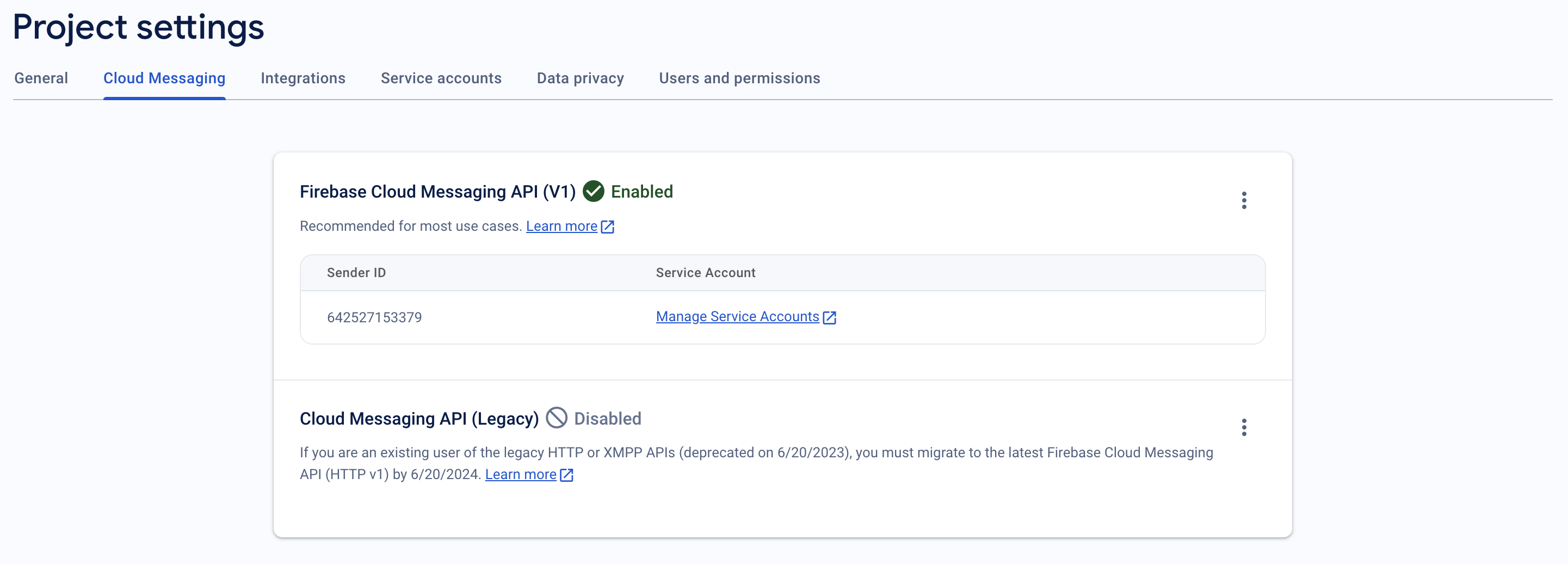
Click on "Cloud Messaging" and, if it is not already enabled, activate the Firebase Cloud Messaging API (V1).
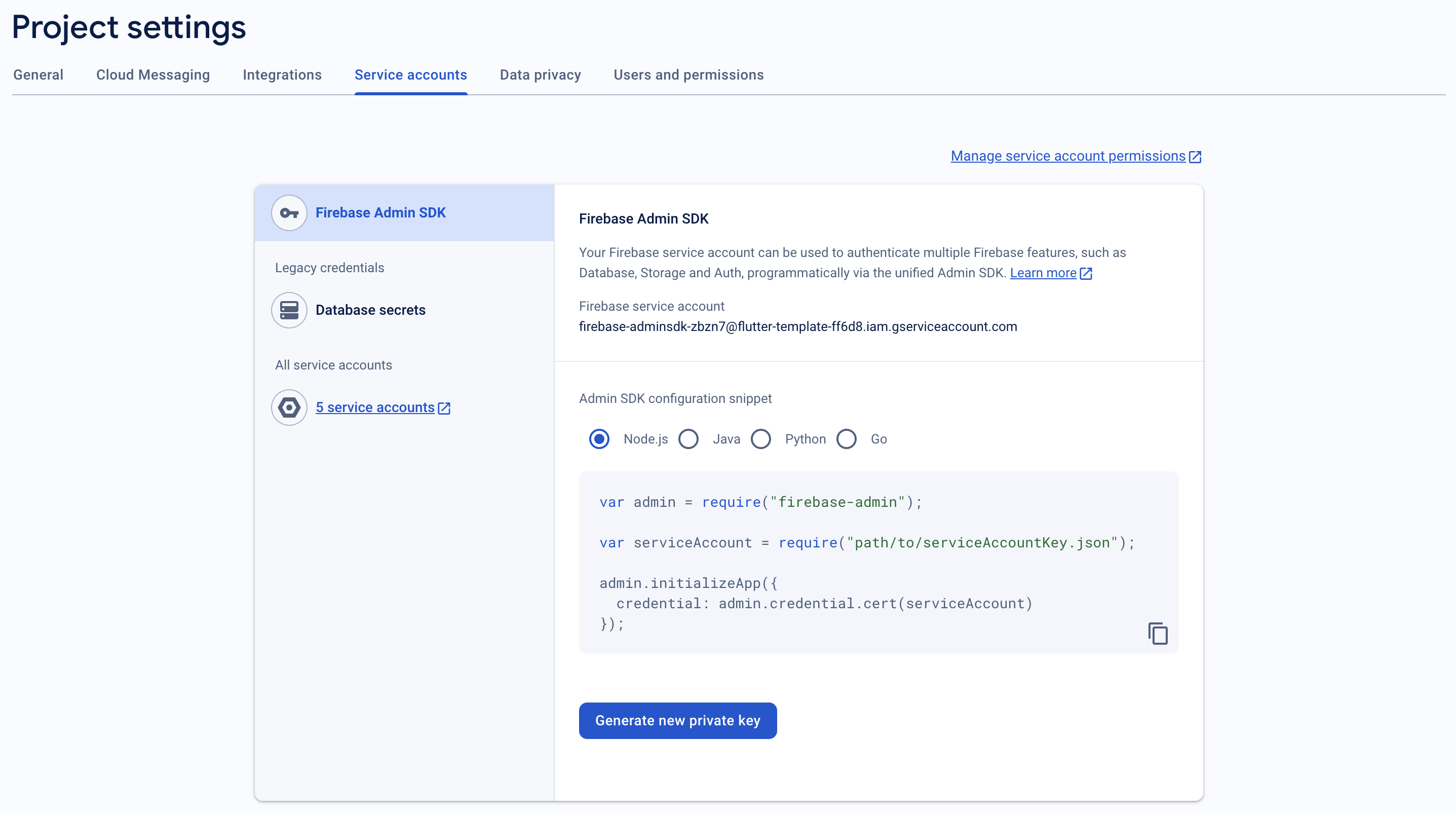
 Proceed to the "Service Accounts" section and generate a new private key, which will automatically create a file named like `serviceAccountKey.json`.
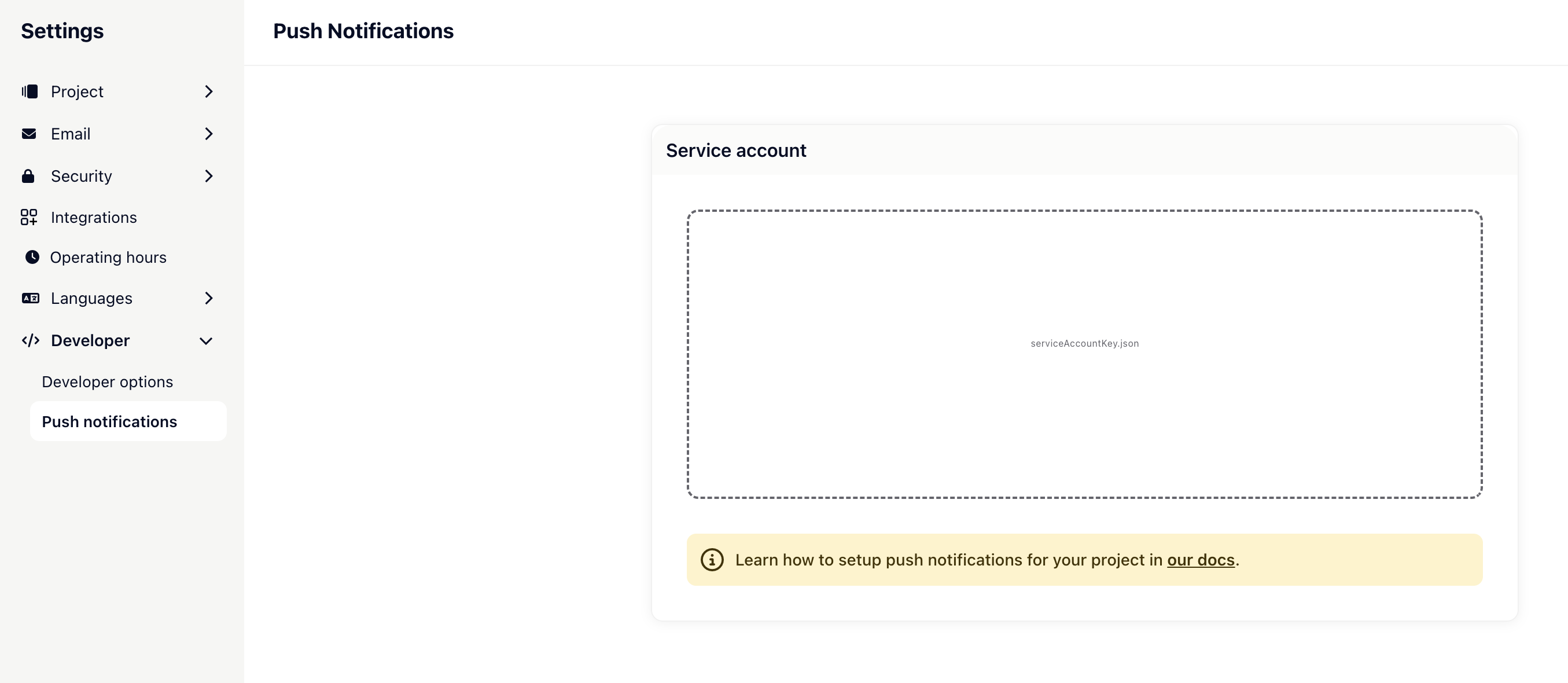
 Next, open the project settings in Gleap, select "Push Notifications", and upload the `serviceAccountKey.json` file. Finally, save your configuration.
 ## Subscribe to the Gleap user topic
The last step to complete the push notification setup is to subscribe to the user topic, which Gleap will send the push notifications to. In order to do so, you will need to register the register & unregister push message topic callbacks.
```dart theme={null}
// Find more information here:
// https://pub.dev/packages/firebase_messaging
Gleap.registerPushMessageGroup(callbackHandler: (String topic) {
FirebaseMessaging.instance.subscribeToTopic(topic);
});
Gleap.unregisterPushMessageGroup(callbackHandler: (String topic) {
FirebaseMessaging.instance.unsubscribeFromTopic(topic);
});
```
Please note that these callbacks should be called before initializing Gleap.
## Handle push-notifications click
To handle push notifications, you will need to register a callback handler for the `onMessage`, `onMessageOpenedAppHandler` and `onBackgroundMessageHandler` callbacks.
```dart theme={null}
static Future onMessageOpenedAppHandler(RemoteMessage message) async {
if (message.data['sender'] == 'GLEAP') {
Gleap.handlePushNotification(data: message.data);
}
}
```
That's it - build and run your app 🚀
## Notification images
When a changelog or news article with a featured image is sent as a push notification, Gleap includes the image in the FCM payload.
* **Android** displays the image automatically when the notification arrives while your app is in the background — no setup required.
* **iOS** requires a Notification Service Extension in your app to display the image. Follow the native setup in the [iOS push notification guide](/documentation/ios/push-notifications#notification-images) — the extension is added to the iOS project in Xcode and works unchanged in a Flutter app.
## Subscribe to the Gleap user topic
The last step to complete the push notification setup is to subscribe to the user topic, which Gleap will send the push notifications to. In order to do so, you will need to register the register & unregister push message topic callbacks.
```dart theme={null}
// Find more information here:
// https://pub.dev/packages/firebase_messaging
Gleap.registerPushMessageGroup(callbackHandler: (String topic) {
FirebaseMessaging.instance.subscribeToTopic(topic);
});
Gleap.unregisterPushMessageGroup(callbackHandler: (String topic) {
FirebaseMessaging.instance.unsubscribeFromTopic(topic);
});
```
Please note that these callbacks should be called before initializing Gleap.
## Handle push-notifications click
To handle push notifications, you will need to register a callback handler for the `onMessage`, `onMessageOpenedAppHandler` and `onBackgroundMessageHandler` callbacks.
```dart theme={null}
static Future onMessageOpenedAppHandler(RemoteMessage message) async {
if (message.data['sender'] == 'GLEAP') {
Gleap.handlePushNotification(data: message.data);
}
}
```
That's it - build and run your app 🚀
## Notification images
When a changelog or news article with a featured image is sent as a push notification, Gleap includes the image in the FCM payload.
* **Android** displays the image automatically when the notification arrives while your app is in the background — no setup required.
* **iOS** requires a Notification Service Extension in your app to display the image. Follow the native setup in the [iOS push notification guide](/documentation/ios/push-notifications#notification-images) — the extension is added to the iOS project in Xcode and works unchanged in a Flutter app.